
How to Fix Windows Update Error (2026) – 15 Fixes That Actually Work
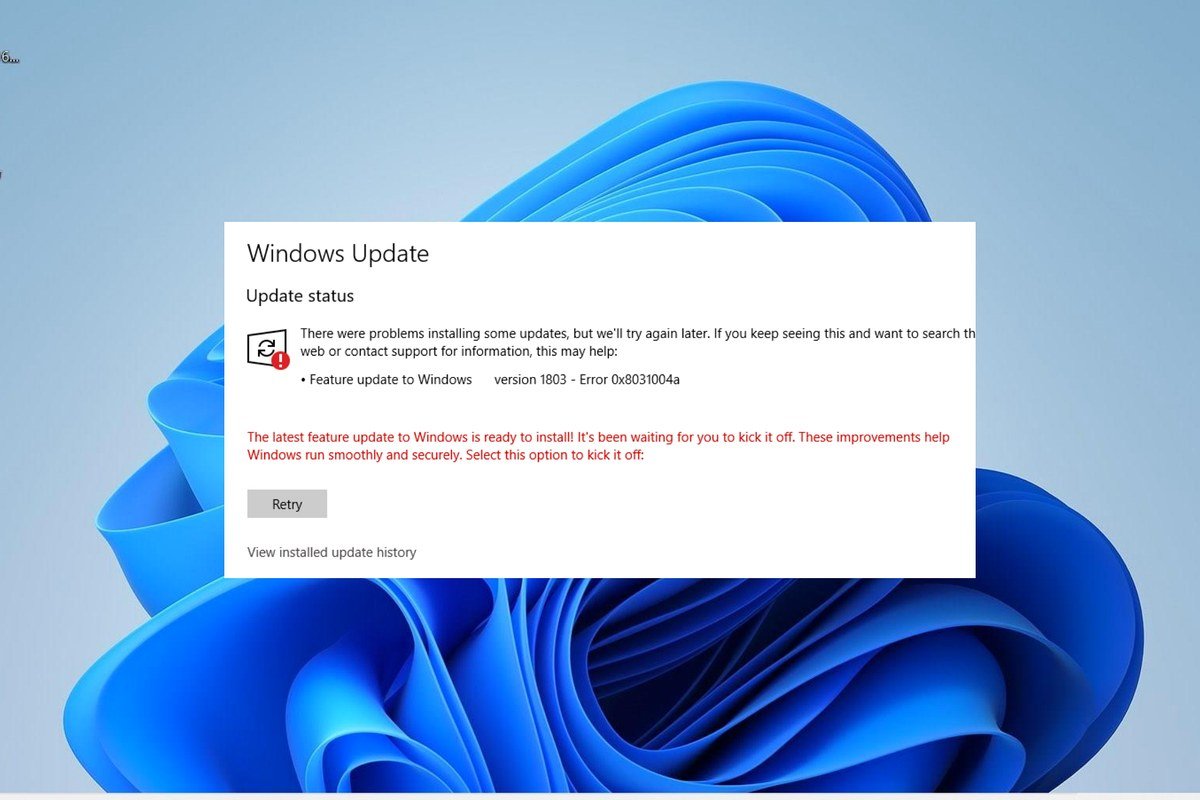
Quick answer
If you need to know how to fix windows update error, do these four things first, in order: restart your PC with Start > Power > Restart (not Shut down), run the Windows Update troubleshooter in Settings > System > Troubleshoot > Other troubleshooters, make sure you have at least 20 GB free on your C: drive, then check for updates again. Most update errors are fixed by one of those four steps. If it still fails, note the error code and the KB number in Settings > Windows Update > Update history, then work through the 15-step fix ladder below and stop as soon as the update works. Do not reset your PC until you have tried the repair reinstall in step 14.
Before you start: check your version first (30 seconds)
Before troubleshooting anything, check what you are actually running. Press Win + R, type winver, and press Enter. Write down the version and the build number. This 30-second check saves wasted work, because two common “update failures” are not failures at all.
- Windows 10 users: Windows 10 support ended on 14 October 2025. After that date, Windows 10 Home and Pro 22H2 get no new updates unless the PC is enrolled in Extended Security Updates (ESU). Microsoft extended the free consumer ESU program in June 2026, and it now runs through 12 October 2027. Enrollment is free if you sync your PC settings with a Microsoft account through Windows Backup, or it costs 1,000 Microsoft Rewards points, or a one-time $30 payment. One ESU license covers up to 10 devices on the same account. ESU covers critical and important security updates for Windows 10 version 22H2 only. It does not add new features or technical support. If your Windows 10 PC has no new updates to install, check ESU enrollment first.
- Windows 11 24H2 Home and Pro users: 24H2 Home and Pro reached end of updates on 13 October 2026. Those PCs do not get the November 2026 update at all. The fix is to move to Windows 11 25H2 or 26H2, which is a small enablement package plus one restart, not to keep troubleshooting a missing update. 24H2 Enterprise and Education are still supported until 12 October 2027.
- Current versions: as of late November 2026, the supported consumer versions are Windows 11 25H2 and 26H2. The latest Patch Tuesday update is KB5132061, released 10 November 2026. It moves 26H2 to build 26300.9974 and 25H2 to build 26200.9974.
Also find your error code before you start. Go to Settings > Windows Update > Update history (on Windows 10: Settings > Update and Security > Windows Update > View update history). Note the failed update’s KB number and its error code. The code tells you which fix to try first, and the KB number is what you need if you end up installing the update manually.
Windows Update error code lookup
Every error code is 0x plus eight hex digits. The first digits name the component: 0x8024 means the Windows Update Agent, 0x8007 means a standard Windows error (read the last four digits), 0x800F means the component store, and 0xC1900 means Windows Setup. Find your code in the table and try the fix listed first.
| Error code | What it means in plain English | Try this first |
|---|---|---|
| 0x80070002 | A file the update needs is missing. | Restart, run the troubleshooter, check disk space, clear the update cache. |
| 0x80070003 | Windows cannot find a path the update needs. | Restart, troubleshooter, free space, clear the cache. |
| 0x8007000D | The downloaded update data is invalid or corrupted. | Clear the update cache so it downloads again. |
| 0x80070020 | Another program, often antivirus, is holding a file open. | Pause third-party security software, or try a clean boot. |
| 0x80070057 | A parameter is wrong; corrupted files, permissions, or configuration. | Run sfc /scannow, then the troubleshooter. |
| 0x80070070 | Not enough disk space. | Free up space, at least 20 GB on a 64-bit PC. |
| 0x800705B4 | The update timed out or was interrupted. | Check the connection, disable antivirus or firewall briefly, restart. |
| 0x80070643 | Install failure, often a .NET Framework or MSI install problem. | Run the troubleshooter, clear the cache, repair with DISM and SFC. |
| 0x80070422 | The Windows Update service is disabled or cannot start. | Enable and start the Windows Update service in services.msc. |
| 0x80073712 | The component store is corrupted. | DISM /RestoreHealth, then sfc /scannow, then restart. |
| 0x800F081F | Windows cannot find the source files it needs. | DISM /RestoreHealth, then sfc /scannow. You may need install media as a source. |
| 0x800F0922 | The update could not finish installing. Low disk space, a VPN, or a full System Reserved or EFI partition. | Free up space, disconnect the VPN, clean boot. If it appeared after the May 2026 update KB5089549, install KB5089573 first. |
| 0x800F0831 | Component store corruption, a missing package. | DISM plus SFC. |
| 0x800F0989 / 0x800F0993 | Servicing failure installing a cumulative update, reported for KB5132061 in November 2026. | Check the 26H2 prerequisites, install the checkpoint update first, then DISM and SFC, then a repair reinstall. Microsoft has not officially confirmed a cause. |
| 0x80240034 | The download was interrupted or did not complete. | Confirm the Windows Update service is running, run the troubleshooter, clear the cache. |
| 0x8024402F | The update package finished with errors, often web-filtering software, a proxy, or a firewall blocking the update servers. | Check the connection, allow Windows Update through the filter or proxy, disable the VPN temporarily. |
| 0x80244022 / 0x80072EE2 | Windows cannot reach the update servers, a timeout. | Check internet, proxy, and firewall settings. |
| 0x8024200B | The update handler failed; the installer needs a restart or failed. | Restart, then retry. If it repeats, clear the cache. |
| 0x8024A105 | Update client issue. | Reset the update services and components. |
| 0x80080005 | Corrupted files or configuration, often paired with 0x80070057. | Run sfc /scannow, then the troubleshooter. |
| 0x80004005 | Unspecified error, often a corrupt download or a permissions problem. | Troubleshooter, cache clear, DISM and SFC. |
| 0xC1900101 | Driver error during a feature update. | Unplug extra hardware, update drivers from the manufacturer, remove third-party security software, then retry. |
How to fix windows update error: the 15-step fix ladder
Work through these in order. Retry the update after each step and stop as soon as it works. The easy fixes come first on purpose.
Step 1: Restart and retry
Use Start > Power > Restart, not Shut down. Fast Startup can preserve a broken session across a shutdown, so a real restart matters. Some updates also need a restart before the next one can install. After the restart, go to Settings > Windows Update and click Check for updates.
Step 2: Check the basics
Check that your internet connection is stable, the PC is plugged in, and you have at least 20 GB free on the C: drive for a 64-bit install (16 GB for 32-bit, per Microsoft). Disconnect any VPN, because a VPN is a known cause of error 0x800f0922. Unplug extra USB hardware. Check the date and time in Settings > Time and language > Date and time, and turn on “Set time automatically”. A wrong date or time breaks update verification.
Step 3: Find the code and the KB number
Go to Settings > Windows Update > Update history (Windows 10: Settings > Update and Security > Windows Update > View update history). Note the failed update’s KB number and its error code, plus the Windows version and build from winver. Look the code up in the table above and start with the fix it points to. Keep the KB number for step 13.
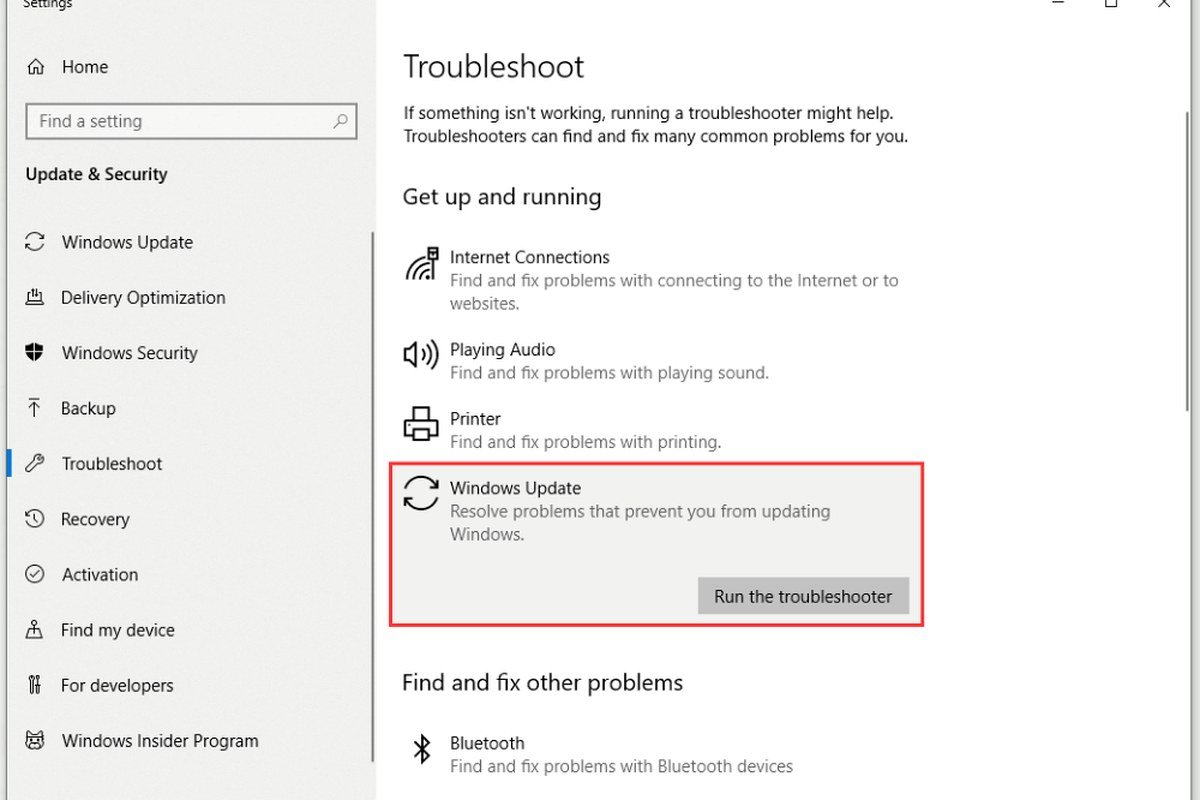
Step 4: Run the Windows Update troubleshooter
On Windows 11: Settings > System > Troubleshoot > Other troubleshooters > Windows Update > Run. On current Windows 11 the troubleshooter opens in the Get Help app, runs diagnostics, and can reset stuck components automatically. On Windows 10: Settings > Update and Security > Troubleshoot > Additional troubleshooters > Windows Update. Apply any suggested fix, restart if asked, then check for updates again. Do not use the old msdt.exe troubleshooter. It is deprecated, and Microsoft has moved troubleshooting to the Get Help app.
Step 5: Free up disk space
Go to Settings > System > Storage > Temporary files and clear what you do not need, or use Disk Cleanup. Uninstall apps you do not use and move large files to an external drive or OneDrive. Low space is the most common cause of 0x800f0922 and 0x80070070. Aim for at least 20 GB free on a 64-bit PC before retrying.
Step 6: Pause and resume to break a retry loop
Go to Settings > Windows Update and pause updates for 1 week, then resume them. This stops Windows retrying the same broken download again and again, and it is useful when an update stalls at a fixed percentage. Pause first when the problem is a loop or a stalled download. Reset the components (step 8) when the problem is a corrupt cache or database. Pausing is the light fix, resetting is the heavy one.
Step 7: Clear the update cache
This deletes downloaded update files only. It does not touch your personal files or apps.
- Press Win + R, type services.msc, and press Enter.
- Right-click Windows Update and choose Stop.
- Open File Explorer and delete the contents of C:\Windows\SoftwareDistribution. Delete the contents, not the folder itself.
- Go back to services.msc, right-click Windows Update, and choose Start.
- Restart your PC and check for updates again.
Step 8: Reset Windows Update components
If clearing the cache did not work, do the full reset. Open Command Prompt as an administrator and run these lines one at a time:
net stop wuauserv
net stop cryptSvc
net stop bits
net stop msiserver
ren C:\Windows\SoftwareDistribution SoftwareDistribution.old
ren C:\Windows\System32\catroot2 catroot2.old
net start wuauserv
net start cryptSvc
net start bits
net start msiserver
Then restart your PC. Renaming catroot2 is the step that separates this from the simple cache clear in step 7. Rename it, do not delete it. Deleting catroot2 outright can cause problems. Microsoft’s own short version of this reset is: net stop wuauserv, rd /s /q %systemroot%\SoftwareDistribution, net start wuauserv.
Step 9: Check the update services
Press Win + R, type services.msc, and press Enter. These services must be running, with Startup type set to Automatic or Automatic (Delayed Start):
- Windows Update (wuauserv)
- Update Orchestrator Service (UsoSvc)
- Background Intelligent Transfer Service (BITS)
- Cryptographic Services (cryptsvc)
Also check Windows Update Medic Service (WaaSMedicSvc), which should be set to Manual. If a service is stopped, right-click it and choose Start. If the options are greyed out because a tool hard-disabled a service, the registry fallback is the Start DWORD under HKEY_LOCAL_MACHINE\SYSTEM\CurrentControlSet\Services\UsoSvc and …\wuauserv, set to 2 for Automatic. Editing the registry is risky, so back it up first.
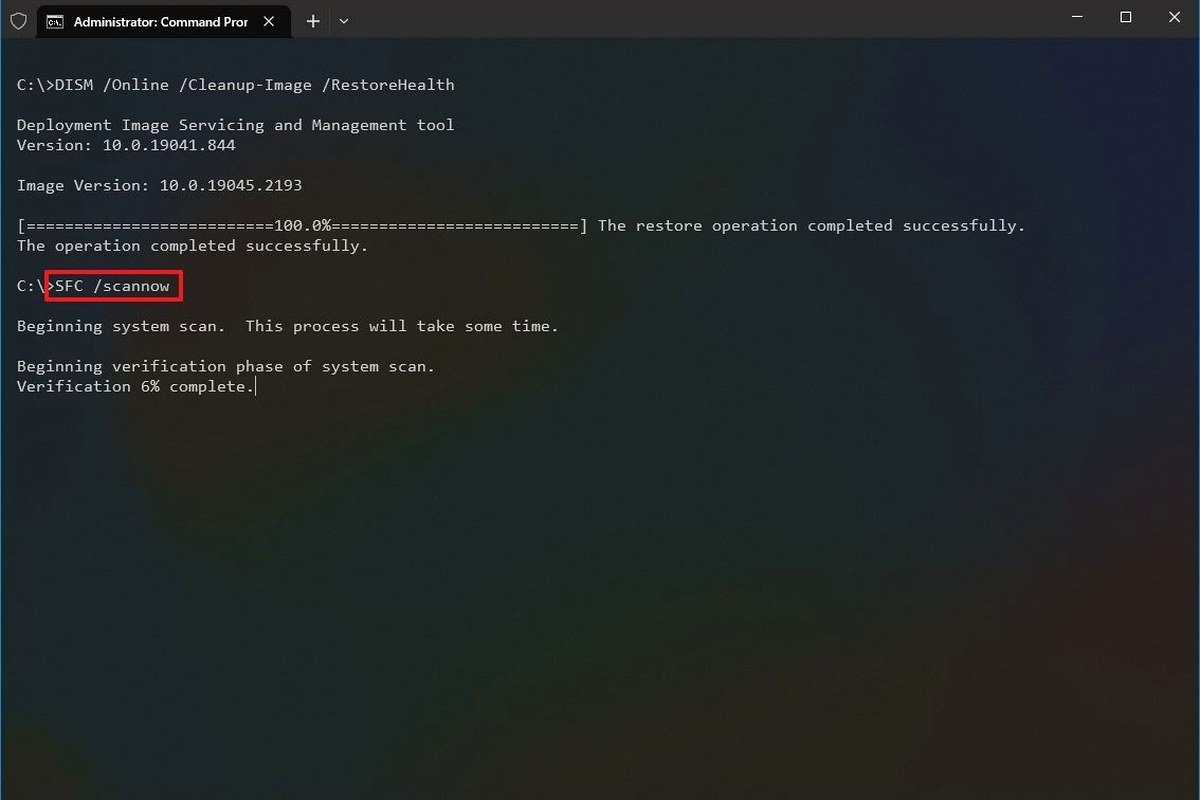
Step 10: Repair system files with DISM, then SFC
Open Command Prompt or Terminal as an administrator and run these two commands, in this order:
DISM /Online /Cleanup-Image /RestoreHealth
sfc /scannow
The order matters. DISM repairs the component store that SFC draws from, so DISM goes first. Several older guides get this backwards. DISM needs internet to fetch healthy files. If you suspect disk errors, you can also run chkdsk /f C:, which needs a restart to run.
Step 11: Disable third-party antivirus or try a clean boot
Security software can lock a file the update needs, which is the usual cause of error 0x80070020. Disable third-party antivirus or firewall only for the update attempt, then turn it back on straight away. If that does not help, try a clean boot: press Win + R, type msconfig, go to the Services tab, check “Hide all Microsoft services”, click Disable all, and restart. Remember to undo the clean boot afterwards.
Step 12: Uninstall the problematic update
Only do this if a recent update installed and then caused problems. Go to Settings > Windows Update > Update history > Uninstall updates, pick the KB, and restart. This removes an update that already installed. It does not fix an update that never installed.
Step 13: Install the update manually from the Microsoft Update Catalog
Go to catalog.update.microsoft.com and search for the KB number you noted in step 3. Download the package that matches your Windows version and processor architecture (check Settings > System > About > System type), double-click the .msu file to install it, and restart. On Windows 11 24H2, 25H2, and 26H2, cumulative updates are checkpoint-based, so you may need to install an earlier checkpoint update first. For the November 2026 update KB5132061 on 26H2, install KB5043080 first, then KB5132061. If the .msu file still fails, use this command from an administrator prompt:
DISM /Online /Add-Package /PackagePath:C:\Packages\<file>.msu
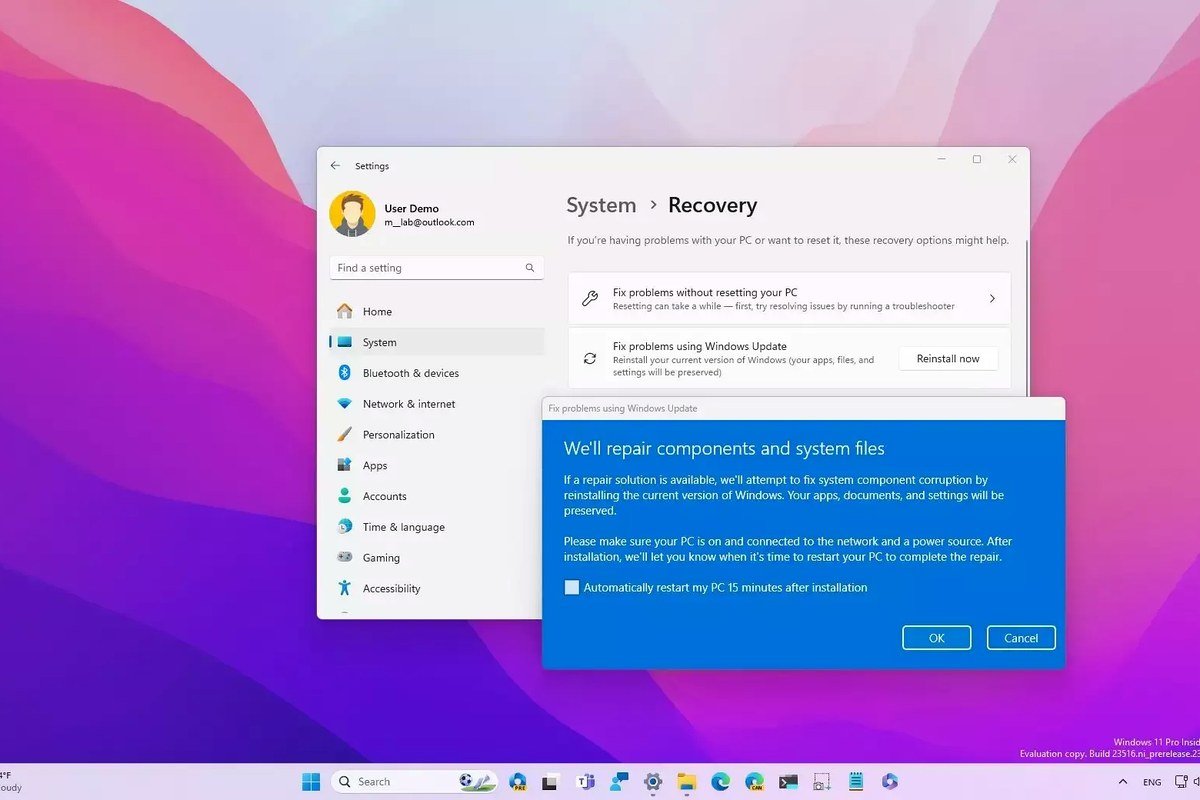
Step 14: Repair reinstall (Fix problems using Windows Update)
On Windows 11 23H2 and later: Settings > System > Recovery > Fix problems using Windows Update > Reinstall now > OK. This downloads and installs a repair version of your current Windows 11 build and keeps your files, apps, and settings. You need power and internet. The alternative is to mount the Windows 11 ISO, run setup.exe, and choose “Keep personal files and apps”. Start the repair install from inside the running Windows session, never from boot or Safe Mode. If the Windows Update repair version stalls, for example at 31%, use the Windows 11 Installation Assistant from Microsoft instead, which does the same in-place repair from a fresh download. Windows 11 26H2 also adds a third option, Cloud Rebuild, in Settings > System > Recovery > Rebuild PC, which reinstalls Windows from a downloaded image without USB media.
Step 15: Reset this PC or clean install (last resort only)
Go to Settings > System > Recovery > Reset PC. This is the last resort because it removes apps and can remove files, depending on the option you choose. Back up first. Microsoft support staff advise trying the repair reinstall in step 14 before this. A repair reinstall and a reset are not the same thing, and the comparison table below makes the difference clear.
Windows Update stuck at a percentage
If the percentage is still moving, leave it alone. Feature updates can take several hours on slower PCs. Before deciding it is stuck, wait 30 to 60 minutes with no change, then open Task Manager (Ctrl + Shift + Esc) and check the Performance tab for Disk and Wi-Fi or Ethernet activity. A flashing drive light also means Windows is still working.
- Stuck at 0% or 100%: restart the PC, check the connection and free space, then retry.
- Stuck between 51% and 99%: check for updates again or rerun the troubleshooter.
- Stuck at 31% during a repair install: this is a known stall. Pause updates for 1 week first (Settings > Windows Update > Pause updates), free at least 20 GB, disconnect unneeded USB devices, reset the update cache, run DISM then SFC, restart, resume updates, and retry. If it still freezes at 31%, use the Windows 11 Installation Assistant instead of the Windows Update repair download.
- Never force a shutdown in the middle of the install phase if you can avoid it. A forced power-off during install can leave Windows in an “Undoing changes” rollback loop. If you see “Undoing changes made to your computer” after a restart, the update installed, failed, and rolled back. Note the code in Update history before trying again.
Repair install vs Reset this PC vs clean install
| Option | Keeps your files | Keeps your apps | Keeps your settings | When to use it |
|---|---|---|---|---|
| Repair reinstall (Fix problems using Windows Update) | Yes | Yes | Yes | Update errors that nothing else fixed, and Windows still boots. Try this first. |
| Reset this PC (Keep my files) | Yes | No | Mostly no | The repair reinstall failed, or Windows is badly broken. |
| Reset this PC (Remove everything) | No | No | No | You are giving the PC away, or nothing else works. |
| Clean install from USB | No | No | No | Last resort, or a fresh start on a new drive. |
What to do if nothing works
- Check Windows release health first. Microsoft lists known issues and safeguard holds per version on the Windows release health dashboard. If an update is failing on many PCs at once, the update itself may be the problem, and no amount of troubleshooting on your PC will fix it.
- Write down what support will ask for: your Windows version and build (from winver), the KB number, the error code, the percentage where it stops, and whether it fails at download, at install, or at restart.
- Back up your files, then do the repair reinstall from step 14. If that fails too, a clean install is the remaining option.
- Do not install third-party “Windows Update fixer” tools. Microsoft and the better guides never recommend them. These tools are a common source of malware and registry damage.
Related reading
- How to Fix Sound Not Working on Windows
- How to Fix Slow Startup Windows
- How to Fix a Stripped Screw Hole in Wood
- How to Fix Squeaky Brakes
- How to Fix Frizzy Hair
- How to Fix a Sagging Door
FAQs
Why does Windows Update keep failing?
The most common causes are low disk space, a corrupt update cache, a disabled update service, corrupted system files, or a VPN or antivirus blocking the download. Work through the ladder in order: restart, troubleshooter, free space, cache clear, component reset, then DISM and SFC. Most failures are fixed by step 7 or earlier.
How do I fix a Windows Update error?
Restart your PC, run the Windows Update troubleshooter, make sure you have at least 20 GB free, then check for updates again. If it still fails, find the error code in Settings > Windows Update > Update history, look it up in the table above, and follow the fix ladder step by step.
Why is my Windows Update stuck at 0% or 100%?
A stuck percentage usually means the download or install stalled. Wait 30 to 60 minutes first and check Task Manager for disk and network activity. If nothing is moving, restart the PC, check your connection and free space, and retry. If it is stuck at 31% during a repair install, pause updates for a week, free 20 GB, reset the cache, run DISM and SFC, then retry.
How do I reset Windows Update components?
Open Command Prompt as an administrator and run: net stop wuauserv, net stop cryptSvc, net stop bits, net stop msiserver, then rename C:\Windows\SoftwareDistribution to SoftwareDistribution.old and C:\Windows\System32\catroot2 to catroot2.old, then net start wuauserv, net start cryptSvc, net start bits, net start msiserver. Restart your PC afterwards.
What does error 0x80070002 mean?
It means a file the update needs is missing. Restart your PC, run the Windows Update troubleshooter, check that you have enough disk space, and clear the update cache. That combination fixes it in most cases.
How do I fix error 0x800f0922?
Free up disk space, disconnect your VPN, and try a clean boot. The error is usually caused by low disk space, a VPN, or a full System Reserved or EFI partition. If it appeared after the May 2026 update KB5089549, install KB5089573 first.
How do I manually install a Windows update?
Search the KB number at catalog.update.microsoft.com, download the package matching your Windows version and processor architecture, double-click the .msu file, and restart. On Windows 11 24H2, 25H2, and 26H2, install the checkpoint update first if one is required, for example KB5043080 before KB5132061.
Can I fix Windows Update without losing my files?
Yes. Every step in the ladder up to step 14 keeps your files. The repair reinstall in step 14 (“Fix problems using Windows Update” > Reinstall now) keeps your files, apps, and settings. Only Reset this PC and a clean install remove things, and those are the last resort.
Why won’t Windows 11 update to 25H2 or 26H2?
Check your version with winver first. If you are on 24H2 Home or Pro, that version reached end of updates on 13 October 2026 and does not get the November 2026 update. Move to 25H2 or 26H2 with the enablement package instead. Otherwise, check free space, run the troubleshooter, and make sure the update services are running.
How do I uninstall a Windows update that broke my PC?
Go to Settings > Windows Update > Update history > Uninstall updates, pick the update, and restart. Only do this for an update that installed and then caused problems.
How much free space do I need for a Windows update?
Microsoft specifies at least 20 GB free for a 64-bit install and 16 GB for 32-bit. Free up space in Settings > System > Storage > Temporary files if you are below that.
Is it safe to delete the SoftwareDistribution folder?
It is safe to delete the contents of C:\Windows\SoftwareDistribution after stopping the Windows Update service. That only removes downloaded update files. Do not delete the folder itself, and do not delete the catroot2 folder. For the full reset, rename catroot2 to catroot2.old instead.
What is the Windows Update troubleshooter and where is it?
On Windows 11 it is in Settings > System > Troubleshoot > Other troubleshooters > Windows Update > Run, and it runs through the Get Help app. On Windows 10 it is in Settings > Update and Security > Troubleshoot > Additional troubleshooters > Windows Update. The old msdt.exe troubleshooter is deprecated.
Why does Windows Update say “Something went wrong”?
That message means the update failed without showing a specific cause on screen. Open Settings > Windows Update > Update history to find the error code, then look the code up in the table above.
How do I pause Windows updates?
Go to Settings > Windows Update and click Pause updates for 1 week. Pausing is useful to break a retry loop or stop a stalled download from restarting. Remember to resume updates afterwards.
Sources
- Microsoft Support, “Troubleshoot problems updating Windows”: https://support.microsoft.com/en-us/windows/troubleshoot-problems-updating-windows-188c2b0f-10a7-d72f-65b8-32d177eb136c
- Microsoft Learn, “Additional resources for Windows Update”: https://learn.microsoft.com/troubleshoot/windows-client/installing-updates-features-roles/additional-resources-for-windows-update
- Microsoft Q and A, “Windows unable to update”: https://learn.microsoft.com/en-us/answers/questions/6076433/windows-unable-to-update
- Microsoft Q and A, “KB5132061 will not install”: https://learn.microsoft.com/en-us/answers/questions/6067407/kb5132061-26300-9974-will-not-install-on-window11
- Microsoft Q and A, “Windows 11 update repair version stopping at 31%”: https://learn.microsoft.com/en-us/answers/questions/6079060/windows-11-update-repair-version-stopping-at-31
- Help Desk Geek, “8 Ways to Fix Windows Update When It Gets Stuck, Fails, or Won’t Install”: https://helpdeskgeek.com/fix-windows-update-stuck-fails-wont-install/
- The Droid Guy, “How To Fix Windows 11 Update Stuck Or Failing (2026)”: https://thedroidguy.com/windows-11-update-stuck-fix-1287279
- Flamingo, “How to fix Windows Update errors: the right order”: https://www.flamingo.run/blog/how-to-fix-windows-update-errors
- Petri, “Troubleshoot and Fix Windows Update Errors”: https://petri.com/fix-windows-update/
- NinjaOne, “Repair Install Windows 11 with an In-place Upgrade”: https://www.ninjaone.com/blog/repair-install-windows-11-with-an-in-place-upgrade/
- Windows Central, “How to fix your PC’s installation using five effective methods on Windows 11”: http://windowscentral.com/software-apps/windows-11/how-to-fix-your-pcs-installation-using-five-effective-methods-on-windows-11
- TechDows, “Complete list of Windows Update error codes”: https://techdows.com/complete-list-of-windows-update-error-codes.html
- TechRepublic, “Windows 10 ESU Cheat Sheet: Cost, Eligibility, and Coverage”: https://www.techrepublic.com/article/news-windows-10-esu-cheat-sheet/
- Windows Latest, “I tested Windows 11 November 2026 update”: https://www.windowslatest.com/2026/11/10/i-tested-windows-11-november-2026-update-heres-whats-new-improved-and-fixed/
- iTechify, “KB5132061: Windows 11 November 2026 Update Guide and Fixes”: https://itechify.com/2026/11/12/kb5132061-windows-11-november-2026-update/
Table Of Content