
How to Fix Sound Not Working on Windows (2026) – 16 Fixes That Actually Work
Quick answer
Here is how to fix sound not working windows: no sound on Windows is almost never dead hardware. In most cases Windows is sending audio to the wrong device, one app or the whole system is muted somewhere the user did not look, an audio enhancement or exclusive-mode lock is blocking playback, the Windows Audio service has stopped, or a recent Windows Update replaced the audio driver with an incompatible version. The fix ladder runs from fastest to most involved: check volume and the output device, restart, run the built-in audio troubleshooter, disable enhancements, restart the audio services, then work on drivers (update, roll back, reinstall from the PC maker), then system repairs (SFC and DISM), then BIOS checks, then System Restore, then Reset Windows as the last resort. Test sound after every step.
Diagnose first: which symptom do you have?
“No sound” is three different problems, and each needs a different first fix.
| Symptom | Likely cause | Start with |
|---|---|---|
| No sound at all, anywhere | Wrong output device, muted volume, stopped audio service, bad driver | Fix 1, Fix 2, Fix 3, Fix 8 |
| Sound works in some apps but not others | One app muted in the Volume mixer, or exclusive mode locked the device | Fix 4 (Volume mixer), Fix 7 (exclusive mode) |
| Sound only through headphones, not speakers | Output device stuck on headphones, or a stuck headphone jack | Fix 2 (output picker), unplug and reseat the headphones |
| Red X on the speaker icon, or “No audio output device is installed” | Driver missing, disabled, or not loading (often Intel SST on laptops) | Fix 9 (driver), Fix 10 (Intel SST) |
| Volume meter moves but no sound comes out | Sound is going to a monitor or TV over HDMI, or the wrong format is set | HDMI section, Fix 7 (default format) |
| Sound died right after a Windows Update | Update replaced or broke the audio driver | Fix 11 (update issues), Fix 9 (roll back the driver) |
| Bluetooth shows Connected but plays nothing | Headphones not selected as output, wrong profile (call mode), wrong format | Bluetooth section |
| Crackling, popping, or muffled sound | Enhancements, spatial audio, or a sample rate mismatch | Fix 6 (enhancements), Fix 7 (default format) |
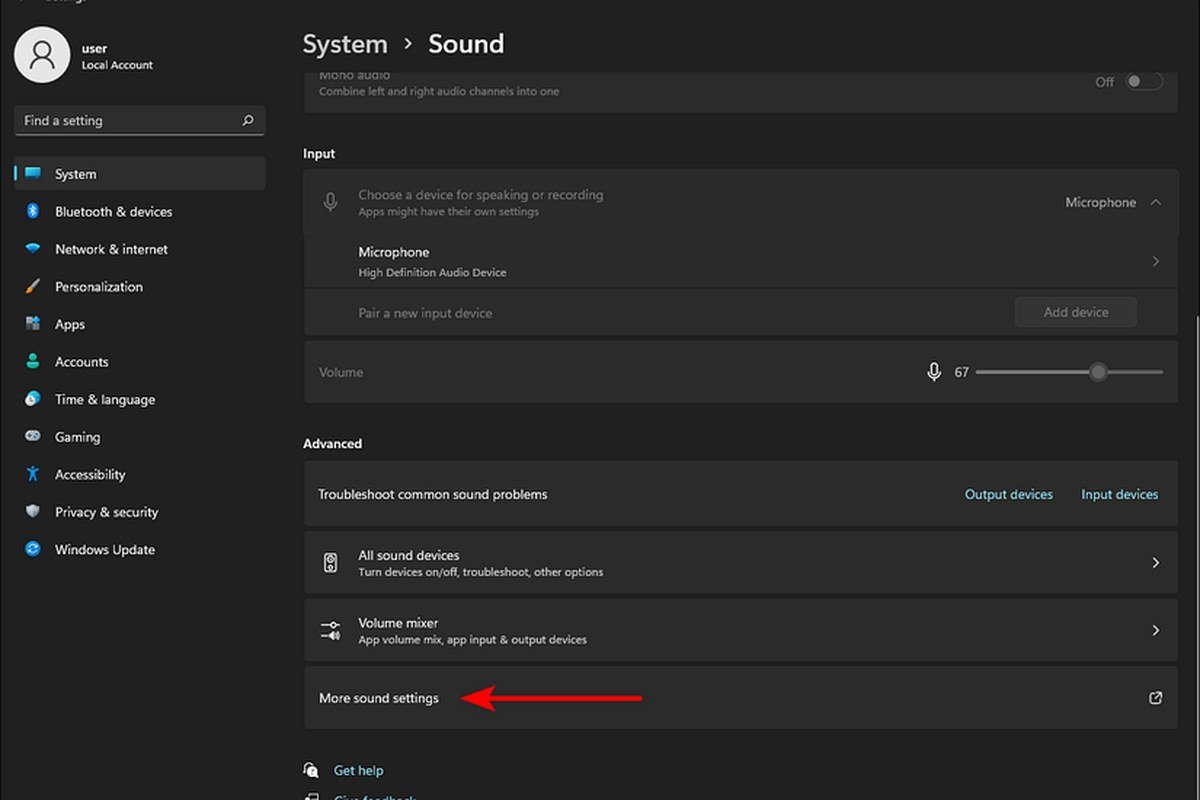
Before you start, use the test tone. In Settings > System > Sound, click your output device and press the Test button. If the test tone plays, the hardware and driver work, and the problem is the app or the routing. Do not reinstall the driver after a successful test tone; look at the app or the routing instead.
The fix ladder: how to fix sound not working windows
Work in this order and test sound after each step. Time estimates are given so you know what you are committing to.
Fix 1: Check volume and mute (30 seconds)
Click the speaker icon in the taskbar. Drag the volume slider up. Check the speaker’s own volume knob and power switch. Then check the Volume mixer: right-click the speaker icon, choose Open Volume mixer, or go to Settings > System > Sound > Volume mixer. One app can be muted while everything else works.
Fix 2: Check the output device (30 seconds)
Click the speaker icon, click the arrow next to the volume slider, and pick the right device. On Windows 11 you can also press Win + Ctrl + V to open the output picker directly. If the device you want is not listed, it is disabled or its driver is not working.
Fix 3: Restart the PC (2 minutes)
A stuck audio process causes more no-sound reports than a bad driver does. Use Restart, not Shut down and power on. Windows Fast Startup preserves the kernel session across a shut down, so a stuck audio service can survive it. A Restart clears it.
Fix 4: Check cables and ports (2 minutes)
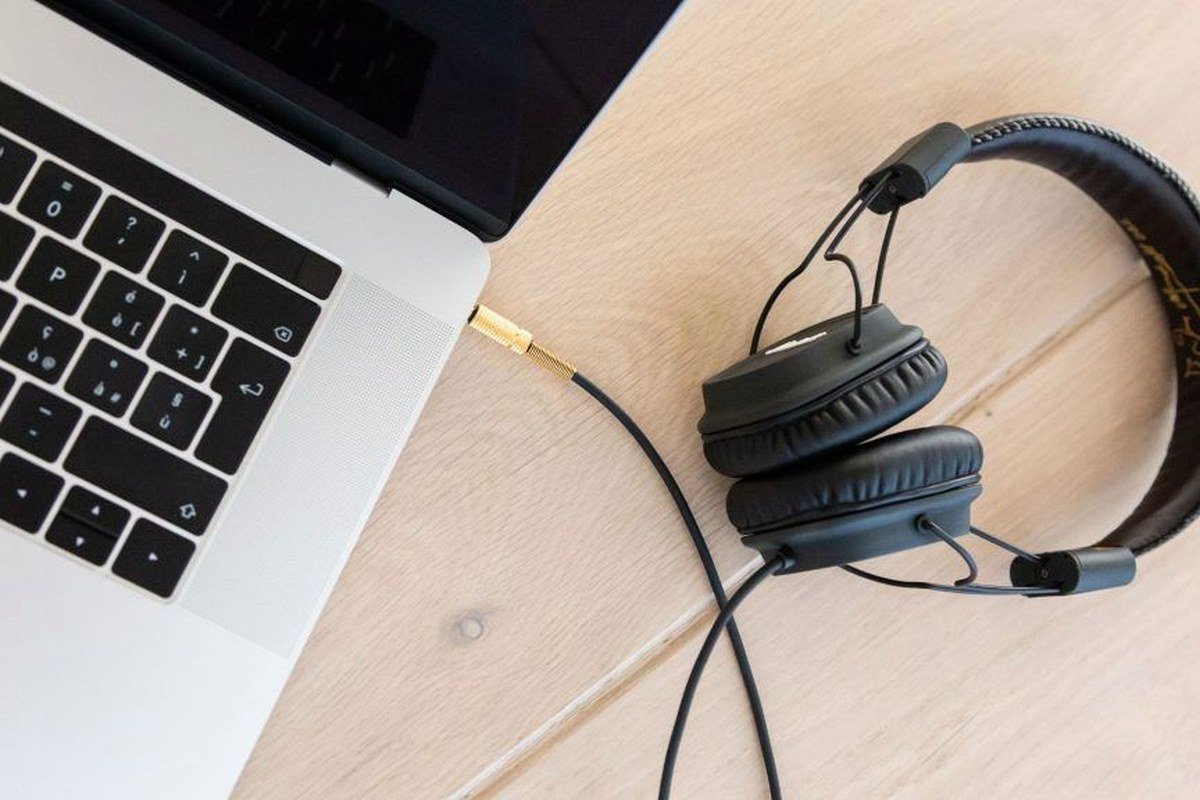
Reseat the 3.5 mm plug (fully seated, correct jack: green for output, pink for mic on desktops), try a different USB port, and try different speakers or headphones to rule out hardware. Unplug headphones to test whether the laptop speakers work on their own.
Fix 5: Run the built-in audio troubleshooter (5 minutes)
Windows 11: Settings > System > Troubleshoot > Other troubleshooters > Audio (or Playing Audio) > Run. On newer Windows 11 builds Microsoft routes the troubleshooter through the Get Help app. Windows 10: Settings > Update and Security > Troubleshoot > Additional troubleshooters > Playing Audio. The troubleshooter checks the output device, the driver, and the services, and it fixes the common cases by itself.
Fix 6: Disable audio enhancements (30 seconds)
Settings > System > Sound, click your output device, set Audio enhancements to Off. Also set Spatial sound to Off (right-click the speaker icon > Spatial sound > Off). After a driver change, enhancements or spatial audio can cause total silence with no error message. Turning them off is a 30-second test that many guides bury deep in their lists.
Fix 7: Disable exclusive mode and set the default format (2 minutes)
Press Win + R, type mmsys.cpl, press Enter. Right-click your device, choose Properties, open the Advanced tab. Set Default Format to 2 channel, 16 bit, 44100 Hz (CD Quality) or 24-bit, 48000 Hz. Uncheck “Allow applications to take exclusive control of this device”. Click OK and test. Exclusive mode lets one app lock the audio device so nothing else can play; this is the usual cause when one app works and the rest are silent.
Fix 8: Restart the Windows Audio services (2 minutes)
Press Win + R, type services.msc, press Enter. Right-click Windows Audio and choose Restart. Right-click Windows Audio Endpoint Builder and choose Restart. Check both are set to Automatic. A third service, Remote Procedure Call (RPC), must also be running; do not change its settings. Never disable these services; only restart them.
Fix 9: Update, roll back, or reinstall the audio driver (10 minutes)
Right-click Start, choose Device Manager, open Sound, video and game controllers. Right-click the audio device and choose Update driver, then Search automatically for drivers. If sound broke after an update, right-click the device, choose Properties, open the Driver tab, and choose Roll Back Driver. If neither helps, right-click and choose Uninstall device (tick “Attempt to delete the driver software for this device” if offered), restart, and let Windows reinstall. Then install the driver from the PC maker’s support site (Dell, HP, Lenovo, ASUS) for your exact model. Realtek driver versions are not interchangeable: a generic Realtek driver may not match a laptop’s hardware configuration, so prefer the PC maker’s driver for the exact model over the generic download. Do not download drivers from random sites, and do not pay for “driver updater” tools.
Fix 10: Fix Intel Smart Sound Technology (10 minutes)
If Device Manager shows a yellow warning on Intel Smart Sound Technology (Intel SST) OED or Audio Controller under System devices, that is the culprit. Intel SST sits under System devices, not under Sound, video and game controllers, so most users never look at it. When it fails after an update, the Realtek endpoint vanishes and Windows reports “No audio output device is installed”. Install the OEM audio package that bundles Realtek and Intel SST together. A documented workaround is to update the controller in System devices via “Browse my computer for drivers”, then “Let me pick from a list”, and choose the generic High Definition Audio Controller. This forces Windows to use the native class driver instead of the stuck proprietary one. Do not mix a generic Realtek driver on top of an OEM package, or a generic Intel driver on top of a Realtek + Intel SST package; it breaks dependencies and can cause Intel SST Code 10 errors.
Fix 11: Check Windows Update and known bad updates (10 minutes)
Settings > Windows Update > Check for updates, install anything available, and restart. If sound broke right after a specific update, go to Settings > Windows Update > Update history > Uninstall updates, and remove the recent update. See the update section below for the confirmed September 2026 USB audio issue and its fix update.
Fix 12: Run System File Checker and DISM (15 to 25 minutes)
Open Command Prompt as Administrator. Run DISM /Online /Cleanup-Image /RestoreHealth first (repairs the Windows image, takes 5 to 10 minutes), then sfc /scannow (checks system files, takes 10 to 15 minutes). Restart after both complete. Run DISM before SFC, because SFC pulls replacement files from the image DISM repairs.
Fix 13: Check BIOS/UEFI (5 minutes)
Reboot into BIOS/UEFI setup. Verify onboard audio / HD Audio is enabled. If it was disabled, enable it, save, and boot into Windows. If no audio device appears at all, even in Device Manager, a disabled BIOS setting is a likely cause.
Fix 14: Test with another device (5 minutes)
Plug in USB headphones or a USB speaker. If USB audio works but the built-in speakers do not, the onboard audio path (driver, jack, or speakers) is the problem, not Windows itself. Do not assume the speakers are dead until you have tested with other speakers or headphones.
Fix 15: System Restore (15 minutes)
Press Win + R, type rstrui.exe, press Enter. Pick a restore point from before the sound broke. This undoes driver and update changes but keeps personal files. Try this before Reset Windows.
Fix 16: Reset Windows, last resort (1 hour or more)
Settings > System > Recovery > Reset this PC > Keep my files. This reinstalls Windows and keeps documents, but removes installed apps and settings. Back up first. Reset is the last resort, not the third step.
Sound works in some apps only
This is a large share of no-sound reports, and it has its own causes.
- Per-app volume: open the Volume mixer (right-click the speaker icon > Open Volume mixer, or Settings > System > Sound > Volume mixer). Each app has its own volume slider and its own mute button, and each app can be routed to a different output device. One app muted here stays muted even when the system volume is up.
- Exclusive mode: one app (often a game, a DAW, or a call app) can lock the audio device so nothing else plays. Turn it off as in Fix 7 above.
- Wrong output per app: in the Volume mixer, check that the silent app is routed to the right output device. Some apps remember a previous device (for example headphones that are now unplugged) and keep sending audio there.
- Mono audio and balance: if sound plays in only one ear, turn off Mono audio in Settings > Accessibility > Audio, and check the left/right balance in the device Properties.
Bluetooth audio: connected but no sound
Bluetooth audio has its own failure modes, and they confuse people because Windows shows the headphones as “Connected” while playing nothing.
- Select the Bluetooth device as the output. Click the speaker icon, click the arrow, and pick the headphones. “Connected” in Bluetooth settings does not mean “selected as the output device”.
- Set the format to 2 channels, 16 bit, 48000 Hz (DVD Quality). Settings > Bluetooth and devices > Devices, select the headphones, open Advanced sound properties (only visible while connected), set Format to 2 channels, 16 bit, 48000 Hz (DVD Quality). This is Microsoft’s own documented fix and the most common cure when the volume meter moves but no sound is heard.
- Get out of call mode (HFP). Bluetooth headsets have two profiles: A2DP for stereo music and HFP (Hands-Free Profile) for calls. When the microphone is in use (Zoom, Teams, Discord, or a call), Windows switches to HFP, which is low-quality mono. After the call ends, close the app and disconnect and reconnect the headphones, or select the Stereo output instead of the Hands-Free output in Sound settings.
- Remove and re-pair. Settings > Bluetooth and devices, find the device, More options (…) > Remove device, then Add device > Bluetooth and pair again. Put the headphones in pairing mode first.
- Turn Bluetooth off and on. Settings > Bluetooth and devices, turn Bluetooth off, wait 10 seconds, turn it back on, reconnect.
- Multipoint confusion. If the headphones are connected to a phone and a laptop at the same time, audio may go to the wrong device. Disconnect the extra device.
- Update the Bluetooth adapter driver. Device Manager > Bluetooth, right-click the adapter (often has “radio” in the name), Update driver > Search automatically for drivers.
- Check A2DP support. The headphones must support the A2DP profile for stereo audio. Check the device documentation or the maker’s site.
HDMI and DisplayPort audio: when sound goes to the monitor
HDMI and DisplayPort carry audio as well as video. When Windows detects a new monitor or TV, it may silently make that display the default output. If the monitor has no built-in speakers, you hear nothing, even though everything looks fine.
- Switch back: click the speaker icon, click the arrow next to the volume slider, and select your speakers or headphones. This also sets the default.
- Stop it stealing the default again: open the classic Sound panel (Win + R > mmsys.cpl), go to the Playback tab, right-click the monitor entry (it may be listed as the monitor brand, or as NVIDIA High Definition Audio, AMD High Definition Audio, or Intel Display Audio), and select Disable. Make sure your speakers are enabled and have the green checkmark (Set as Default Device).
- Sound disappears after sleep or wake: Dell documents that Windows may switch the default playback device to the audio-capable video cable when a laptop wakes from sleep, because it detects that cable first. Re-select the output device, or disable the monitor audio device as above.
- HDMI device missing from the list: in mmsys.cpl > Playback tab, right-click empty space and tick Show Disabled Devices and Show Disconnected Devices. If the HDMI device appears greyed out, right-click it and choose Enable. If it still does not appear, the problem is the GPU driver, not the audio driver: HDMI audio is bundled with the GPU driver. In Device Manager > Sound, video and game controllers, look for NVIDIA High Definition Audio, AMD High Definition Audio, or Intel Display Audio with a yellow warning triangle. Update or reinstall the GPU driver; a clean GPU driver install usually fixes it.
- Monitor without speakers: if the monitor has no speakers, do not select it as the output. Pick the real speakers.
- TV audio settings: TVs have their own input-specific audio settings. If the HDMI port receives audio but the TV is silent, check the TV’s Audio menu. Some TVs default a new HDMI input to ARC output, which sends audio to an external soundbar instead of the built-in speakers.
- DisplayPort note: DisplayPort behaves like HDMI for audio routing. The same switch-back and disable steps apply.
Windows 10 vs Windows 11: where the settings live
| Task | Windows 11 | Windows 10 |
|---|---|---|
| Sound settings | Settings > System > Sound | Settings > System > Sound |
| Output device picker | Click the speaker icon, then the arrow next to the volume slider (or Win + Ctrl + V) | Click the speaker icon, then click the device name above the volume slider |
| Volume mixer | Right-click the speaker icon > Open Volume mixer, or Settings > System > Sound > Volume mixer | Right-click the speaker icon > Open Volume mixer, or Settings > System > Sound > App volume and device preferences |
| Audio troubleshooter | Settings > System > Troubleshoot > Other troubleshooters > Audio, or the Get Help app | Settings > Update and Security > Troubleshoot > Additional troubleshooters > Playing Audio |
| Classic Sound panel | Win + R > mmsys.cpl | Win + R > mmsys.cpl |
| Audio enhancements | Settings > System > Sound > click the device > Audio enhancements dropdown | Device Properties > Enhancements tab (in the classic Sound panel) |
| Default format | mmsys.cpl > device Properties > Advanced > Default Format | Same (mmsys.cpl) |
| Services | Win + R > services.msc > Windows Audio, Windows Audio Endpoint Builder | Same |
| Device Manager | Right-click Start > Device Manager | Right-click Start > Device Manager |
Windows 11 differences that matter:
- Quick Settings volume mixer: Windows 11 puts the output picker in the Quick Settings flyout (click the speaker icon, then the arrow). The per-app Volume mixer is in Settings > System > Sound > Volume mixer.
- Troubleshooter moved to Get Help: on newer Windows 11 builds, Microsoft routes the audio troubleshooter through the Get Help app. The Settings path still lists it on most builds.
- Windows 10 end of support: Microsoft ended free Windows 10 support on 14 Oct 2025. Windows 10 machines no longer get security or quality updates, including audio driver fixes delivered through Windows Update. If the PC qualifies, upgrade to Windows 11 rather than chasing Windows 10 fixes.
- Windows 11 24H2 end of updates: Windows 11 version 24H2 Home and Pro editions reached end of updates on 13 Oct 2026. Microsoft recommends updating to version 25H2 or 26H2 to keep receiving updates.
No sound after a Windows update
Sound that worked yesterday and died after an update is almost always a driver problem, not a hardware problem.
- Roll back the driver first. Device Manager > Sound, video and game controllers > right-click the audio device > Properties > Driver tab > Roll Back Driver. This undoes the driver change the update made.
- Uninstall the update. Settings > Windows Update > Update history > Uninstall updates, and remove the recent update. Then pause updates for a week while Microsoft ships a fix.
- Install the fix update. Check Settings > Windows Update > Check for updates and install anything available. Microsoft ships fix updates for audio regressions within days or weeks.
- The confirmed September 2026 USB audio issue. After installing the 8 September 2026 security update (KB5124008), some USB Audio Class 1.0 devices failed to start or produced no sound, showing Code 10 in Device Manager, with unresponsive volume controls. An out-of-band update on 14 September 2026 (KB5129195) fixed only the 8-channel and 3D audio symptoms. Microsoft’s known-issues page for Windows 11 24H2 lists the issue as Resolved by KB5132061 on 10 November 2026. The fix is to install the latest Windows update (KB5132061 or later), not to buy new hardware. Switching the affected USB device to 2-channel stereo mode was the documented workaround while the fix was pending.
- One unconfirmed report: one site claims the April 2026 update KB5083769 broke USB speakers and headsets. Microsoft’s known-issues page does not list it. Treat it as reported, not confirmed. If your sound broke after that update, the generic fix applies: roll back the driver or uninstall the update.
What NOT to do
- Do not download drivers from random sites. Get audio drivers only from the PC maker’s support site for your exact model, or from the component maker (Realtek, Intel). Random driver download sites bundle adware and wrong drivers.
- Do not pay for “driver updater” tools. They charge a subscription for something Windows Update and the PC maker’s site do for free. Several of them are also flagged as potentially unwanted programs.
- Do not disable all audio services. Windows Audio and Windows Audio Endpoint Builder must run. Disabling them kills all sound. Only restart them, never disable them.
- Do not use registry hacks from forums. Registry edits that claim to fix audio (deleting UpperFilters, editing audio keys) can break the audio stack completely and are hard to undo. This article does not recommend any registry edit.
- Do not mix generic and OEM driver packages. Installing a generic Realtek driver on top of an OEM package breaks dependencies and can cause Intel SST Code 10 errors. Use one package from the PC maker.
- Do not uninstall the High Definition Audio Controller in System devices unless you know why. It is the bus driver for the audio codec. Uninstalling it removes the whole audio path.
- Do not ignore the test tone. If the test tone plays, the hardware and driver work. Skipping this test leads to unnecessary driver reinstalls.
- Do not reset Windows before trying System Restore. Reset is the last resort, not the third step. It removes installed apps and settings.
- Do not assume the speakers are dead. Test with other speakers or headphones first. In most cases the speakers are fine and Windows is routing audio elsewhere.
Related reading
- How to Fix Windows Update Error
- How to Fix Slow Startup Windows
- How to Fix a Stripped Screw Hole in Wood
- How to Fix Squeaky Brakes
- How to Fix Frizzy Hair
- How to Fix a Sagging Door
FAQs
Why is my sound not working on Windows 11?
The most common causes are the wrong output device selected, a muted app in the Volume mixer, a stopped Windows Audio service, an audio enhancement blocking playback, or a driver replaced by a Windows Update. Work the fix ladder in order: output device, restart, troubleshooter, enhancements off, services, then drivers.
Why is there no sound on my laptop?
Check the output device first (the sound may be going to a monitor or to Bluetooth headphones), then the Volume mixer, then restart. On laptops, the most common hidden culprit is Intel Smart Sound Technology failing after an update, which makes Windows report “No audio output device is installed”.
How do I fix no sound after a Windows update?
Roll back the audio driver in Device Manager (Properties > Driver tab > Roll Back Driver), or uninstall the recent update in Settings > Windows Update > Update history > Uninstall updates. Then install the latest Windows update, because Microsoft ships fix updates for audio regressions. The September 2026 USB audio issue was fixed by KB5132061 on 10 November 2026.
Why does my computer say “No audio output device is installed”?
It usually means a driver problem, not a hardware problem. Microsoft’s own support page says Windows may not detect an audio output device if the driver is missing, outdated, disabled, or not loading correctly. Check Device Manager first, including System devices for Intel SST, then update or reinstall the driver from the PC maker.
How do I get sound back on Windows 11?
Click the speaker icon, check the output device and the volume, restart the PC, run the audio troubleshooter (Settings > System > Troubleshoot > Other troubleshooters > Audio), turn off audio enhancements, restart the Windows Audio service, then update or reinstall the audio driver. Test sound after each step.
Why are my laptop speakers not working but headphones work?
Windows is sending audio to the headphones as the output device. Click the speaker icon, click the arrow, and select Speakers. If the speakers still do not work after unplugging the headphones, the headphone jack may be stuck, or the speaker driver may need reinstalling.
Why are my headphones not detected on Windows 11?
Check the jack (fully seated, correct port), try another port or another pair of headphones, and check Device Manager for a warning on the audio device. For Bluetooth headphones, remove and re-pair them, and check that they are selected as the output device, not just connected.
Why is my Bluetooth connected but there is no sound?
“Connected” does not mean “selected as the output device”. Click the speaker icon and pick the headphones as the output. If that does not work, set the format to 2 channels, 16 bit, 48000 Hz (DVD Quality) in Advanced sound properties, or remove and re-pair the headphones. If you were on a call, Windows may still be in Hands-Free (HFP) call mode; close the call app and reconnect.
How do I fix sound not working on Windows 10?
The same fix ladder applies, with different settings paths: the troubleshooter is in Settings > Update and Security > Troubleshoot > Additional troubleshooters > Playing Audio, and enhancements live in the classic Sound panel. Note that free Windows 10 support ended on 14 Oct 2025, so Windows 10 machines no longer get audio driver fixes through Windows Update. If the PC qualifies, upgrade to Windows 11.
Why is there no sound through HDMI on Windows 11?
Windows may have made the monitor or TV the default output, and the monitor may have no speakers. Click the speaker icon and select your speakers instead. To stop it happening again, disable the monitor audio device in mmsys.cpl > Playback tab. If the HDMI device is missing entirely, update the GPU driver, because HDMI audio is bundled with it.
How do I restart the Windows Audio service?
Press Win + R, type services.msc, press Enter. Right-click Windows Audio and choose Restart. Do the same for Windows Audio Endpoint Builder. Check both are set to Automatic. Do not disable them.
How do I update my audio driver on Windows 11?
Right-click Start, choose Device Manager, open Sound, video and game controllers, right-click the audio device, choose Update driver, then Search automatically for drivers. For the best result, download the driver from the PC maker’s support site for your exact model instead.
Why is my sound not working in some apps?
One app is muted or routed to another device in the Volume mixer, or one app has locked the device in exclusive mode. Open the Volume mixer, check the app’s volume and output device, and turn off exclusive mode in mmsys.cpl > device Properties > Advanced.
Why is my sound so quiet on Windows 11?
Check the Volume mixer for a low per-app volume, check the speaker’s own knob, turn off audio enhancements (which can reduce volume), and check the left/right balance in the device Properties. If sound plays in only one ear, turn off Mono audio in Settings > Accessibility > Audio.
How do I fix Realtek audio not working?
Update or reinstall the Realtek driver from the PC maker’s support site for your exact model, not the generic Realtek download. If Device Manager shows a warning on Intel SST under System devices, install the OEM audio package that bundles Realtek and Intel SST together. As a workaround, you can force the generic High Definition Audio Controller driver under System devices.
Sources
- Microsoft Support, “Fix missing or undetected audio output device in Windows”: https://support.microsoft.com/en-us/windows/hardware/audio/fix-missing-or-undetected-audio-output-device-in-windows
- Microsoft Support, “Fix Bluetooth connected but no sound issue on Windows”: https://support.microsoft.com/en-us/windows/hardware/bluetooth/fix-bluetooth-connected-but-no-sound-issue-on-windows
- Microsoft Learn, “Windows 11, version 24H2 known issues”: https://learn.microsoft.com/en-us/windows/release-health/status-windows-11-24h2
- Help Desk Geek, “Sound Not Working on Windows 11? 9 Fastest Fixes That Actually Work”: https://helpdeskgeek.com/sound-not-working-windows-11-fix/
- Geek Rewind, “What to Do When Your Windows 11 PC Has No Audio”: https://geekrewind.com/what-to-do-when-your-windows-11-pc-has-no-audio/
- SolveYourTech, “Fix No Sound on Windows 11: Speakers, Headphones, Bluetooth”: https://www.solveyourtech.com/how-to-fix-audio-on-windows-11-easy-steps-to-solve-sound-issues/
- The Droid Guy, “How To Fix No Sound On Windows 11 (2026)”: https://thedroidguy.com/no-sound-windows-11-1287294
- The Droid Guy, “HDMI No Sound on Windows 11”: https://thedroidguy.com/hdmi-no-sound-windows-11-1290365
- The Droid Guy, “Headphones Not Detected on Windows 11”: https://thedroidguy.com/headphones-not-detected-windows-11-1289298
- W3Reference, “Windows Can’t Find Audio Device? 11 Proven Fixes”: https://www.w3reference.com/blog/windows-cant-find-audio-device/
- MakeUseOf, “How to Fix the ‘No Audio Output Device Is Installed’ Error on Windows”: https://www.Makeuseof.com/windows-no-audio-output-device-installed-error/
- Local Tech Fix, “No Sound on Windows 11? Why Your Speakers Went Quiet”: https://localtechfix.com/articles/no-sound-windows-11-audio-not-working
- GadgetsFocus, “No Sound on Windows 11 or Mac (No Audio Output)? 7 Fixes”: https://gadgetsfocus.com/no-sound-windows-11-mac-no-audio-output-device-installed-fixes/
- FDayTalk, “No Sound on Windows 11? Fix Audio Issues Step by Step”: https://www.fdaytalk.com/no-sound-windows-11/
- GeekChamp, “How to Fix Audio on Windows 11”: https://geekchamp.com/how-to-fix-audio-on-windows-11-easy-steps-to-solve-sound-issues/
Table Of Content